How do I add an Admin user to WordPress?
To add an Admin user to WordPress, you need to be logged in with an existing administrator account. Once logged in, follow these steps:
1. Log in to your WordPress dashboard.
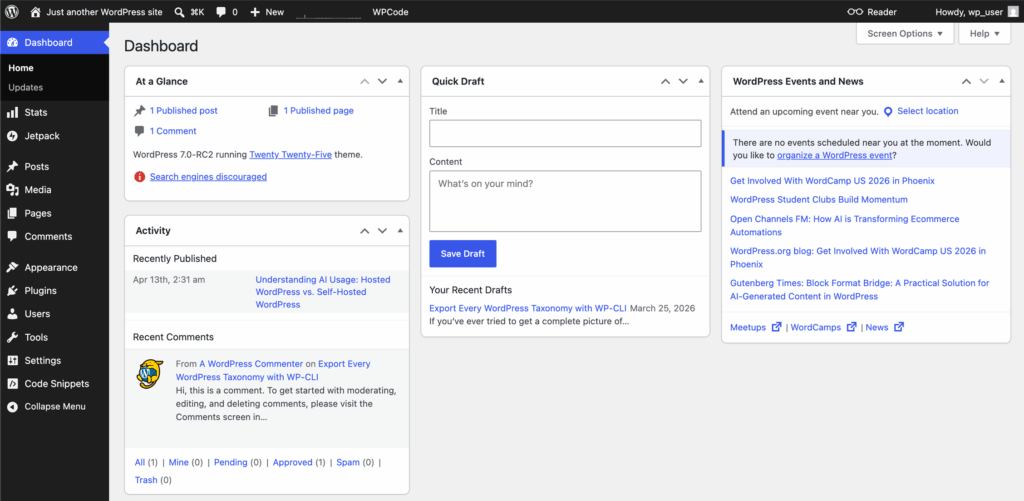
2. In the left-hand menu, click Users.

3. Click Add New.

4. Enter the new user’s information, including their username and email address. You can also add their first name, last name, and website if needed.

5. Choose a secure password or allow WordPress to generate one automatically.

6. Make sure the option to Send the new user an email about their account is checked. This is recommended because WordPress will send the login or password setup details directly to the new user, so you do not need to share a password manually.

7. In the Role dropdown, select Administrator.

8. Click Add User.
The new user will now have a WordPress admin account and should receive an email notification with instructions to access the site.
Be careful when assigning the Administrator role. Admin users can edit your website, install plugins, change themes, manage settings, add or remove users, and access sensitive areas of the site. Only give this role to trusted team members, your web developer, or your website support agency.
For better secure WordPress access, avoid sending passwords through email, text, or chat. If you need to share access temporarily, use a secure short-term sharing tool such as 1Password secure sharing, Bitwarden Send, One-Time Secret, or Password Pusher. These services allow you to create links that expire after a set time or after being viewed.
After the work is complete, go back to Users in your WordPress dashboard and remove any temporary admin accounts that are no longer needed.
For help managing website users, updates, backups, and security, visit our WordPress maintenance services or read our WordPress security best practices guide.